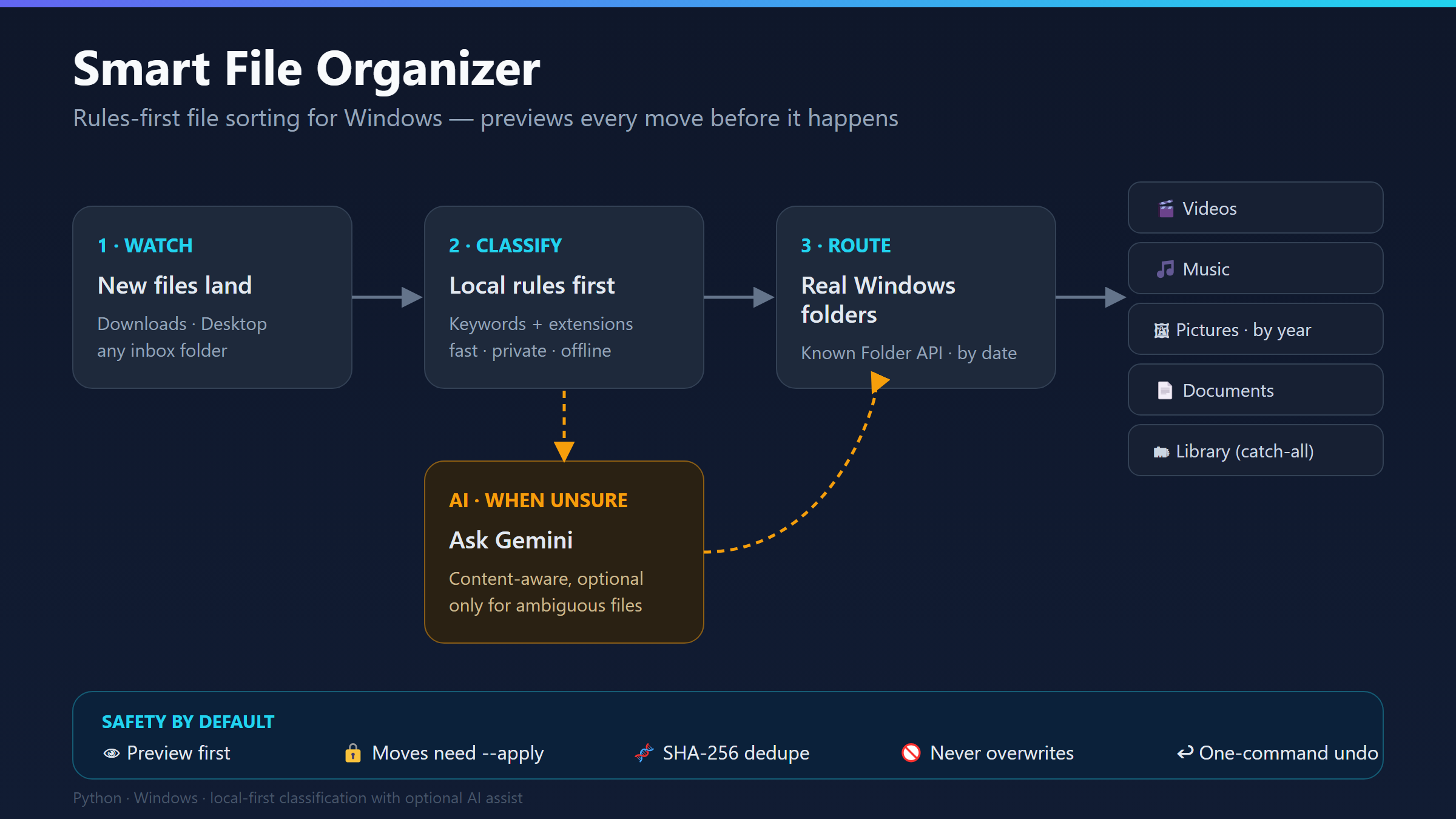
Today, I pushed a Windows program called Smart File Organizer to GitHub. It handles the kind of mess computers quietly manufacture: screenshots, CVs, PDFs, videos, installers, code files, presentations and the mysterious document named final_final_2.pdf that nobody wants to interrogate.
The obvious way to market it would be to shout that it is “AI-powered.” It does have an optional Gemini layer. But the feature I consider most important is much less glamorous: it hesitates.
Before the program moves a single file, it shows you exactly what it intends to do. Nothing changes until you deliberately approve it. When software is touching personal files, caution is not a weakness. It is a feature.
The Problem Is Boring. That Is Why It Matters
Digital clutter rarely arrives dramatically. It accumulates one download, screenshot and duplicate attachment at a time. A Downloads folder becomes a waiting room for files we promise to organise “later,” and later quietly becomes never.
Most of us can create a new folder and drag files into it. The problem is not capability; it is repetition. Manually sorting the same kinds of files is a tiny chore, but tiny chores become irritating when the computer keeps producing them faster than we clean them.
That made the project a good software problem. It was specific, ordinary and testable: watch selected folders, understand what each file probably is, send it somewhere sensible and do all of that without turning automation into a small domestic disaster.
“Smart” Should Not Mean Reckless
A file organiser can cause real damage if it is confidently wrong. It can overwrite an important document, move something into digital Siberia or create such an elaborate folder structure that finding anything becomes an archaeological expedition.
So I built Smart File Organizer around a preview-first safety model. A normal scan only proposes actions. To move anything, the user must explicitly apply the plan. The program does not delete files. If two files have the same name but different contents, it keeps both by creating a numbered version. If they are byte-for-byte identical, it detects that with SHA-256 and follows the duplicate policy the user selected.
Every completed batch is recorded, and the latest one can be undone with a single command or through the desktop interface. There is also a review route for low-confidence classifications. In other words, uncertainty does not have to masquerade as intelligence.
Good automation should remove repetitive decisions without removing human control.
Local Rules Come Before AI
The program works without AI. Its first instinct is to use explicit local rules: file extensions, filenames, keywords and locally extracted text. A video can go to Videos, an audio file to Music, a CV to a Career folder and a screenshot to a dated Screenshots folder. Users can add high-priority rules for their own projects and categories.
Only when those local rules are inconclusive can the optional Gemini layer step in. It can classify ambiguous material and suggest a short content-based subfolder. A screenshot of code, for example, can remain inside the Screenshots category while gaining a useful subfolder such as “Code” or “Terminal.”
This order matters. Sending every file to an AI model would be slower, less private and needlessly expensive. The better design is to solve obvious cases locally, then use AI selectively where it genuinely adds judgment. Users can also disable image, PDF or document-text sharing independently.
AI is an assistant here, not the landlord of the entire program. Frankly, more “AI-powered” products could benefit from that level of restraint.
It Finds the Real Windows Folders
One deceptively important detail is where the files actually go. Hard-coding a path such as C:\Users\Name\Pictures looks easy until someone has moved Pictures to another drive or redirected Documents through their Windows setup.
Smart File Organizer uses the Windows Known Folder system to resolve the user’s real Desktop, Downloads, Documents, Pictures, Music and Videos locations. That allows it to respect the computer as it is configured instead of guessing where everything should be.
Photos can also be grouped by year and month, with supported image formats using their capture date when available. Other destination templates can use the file category, extension or date. It is a small piece of infrastructure, but it separates a toy script from a utility that understands the operating system it runs on.
The Unsexy Features Are the Product
The project now has a Windows desktop interface for previewing a plan, filtering the list and moving only selected files. It also has a command-line interface for people who want more control, an optional always-on watcher, recent batch history, JSON output for other tools and clickable Windows notifications that open the destination folder.
Those features are not equally exciting in a demo. “The notification opens the folder” will not make a venture capitalist levitate. Yet this is the kind of detail that determines whether software feels helpful or annoying after the novelty disappears.
I have written before about the difference between an impressive demo and software that survives ordinary use. Smart File Organizer is another small exercise in that philosophy. The work is not finished when the main function works. The surrounding details are what make the function trustworthy.
What It Is—and What It Is Not Yet
This is a first public version, not a polished consumer product pretending to have descended from the cloud with a Series A.
It currently targets Windows 10 and 11 and requires Python 3.9 or newer. The core uses Python’s standard library, although local PDF text matching can be improved with an optional package. Configuration still lives in a JSON file, which gives technical users flexibility but is not yet the friendliest experience for everyone. Gemini also needs a separate API key when enabled.
That means the program is most approachable right now for Windows users who are comfortable cloning a repository and following setup instructions. A future version could make rule creation visual, simplify installation, package the application as a normal Windows download and offer a clearer first-run setup.
I would rather describe those limitations honestly than decorate version one with the vocabulary of a finished platform. Software does not become better because its announcement uses the word “revolutionary” seventeen times.
A Small Tool Can Still Represent a Big Principle
I do not need every program I build to reinvent an industry. Some software should simply solve one recurring annoyance well.
Smart File Organizer watches the folders you choose, makes a sensible plan and shows its working before it acts. It uses local logic when local logic is enough. It asks AI for help only when configured to do so. It avoids overwriting files, keeps a record and gives you a way back.
That is not artificial intelligence performing digital sorcery. It is something more useful: automation with manners.
If you use Windows and are comfortable with Python, you can view the code and try Smart File Organizer on GitHub. Preview a small test folder first, read the proposed destinations and tell me where the program feels clever—and where it still feels clumsy.
Because the best version of “smart” is not software that takes control as quickly as possible. It is software that knows when to stop and ask.
Read or leave a comment Loads only when opened
No comments:
Post a Comment